From a good find to an easy find.
Keep the posts you love, then find them when you need them. Here’s how to make Keepling your own.
Android · for version 0.1.1
Problem reporting is available from 0.1.1. Screens may differ with your installed version.
Save from Threads with Share
Found something worth keeping? Send it to Keepling from the share menu.
An illustrated example of the sharing flow. Button names and positions may vary by app version.

Menu names and positions vary between Threads versions. If Keepling isn’t listed, use the copied-URL method below.
Save from Instagram with Share
Keep travel tips, recipes and memorable captions together in one archive.
An illustrated example of the sharing flow. Button names and positions may vary by app version.
Private or login-only posts may not be captured. The Google Play edition does not save video files; it shows a cover image when one can be captured.
Save a copied URL
If Keepling isn’t in the share list, a link is all you need.
- In the Threads or Instagram share or more menu, choose Copy link.
- Open Keepling and tap the Keepling logo button at the bottom center.
- Paste the address into Add URL. You can also use Paste from clipboard.
- Tap Save. You need an internet connection to capture a new post.
‘Saved the URL, but couldn’t get the content’ means only the link was kept. Check your connection and whether the post is public, then save the same URL again. A successful capture updates the existing item.
Find a saved post
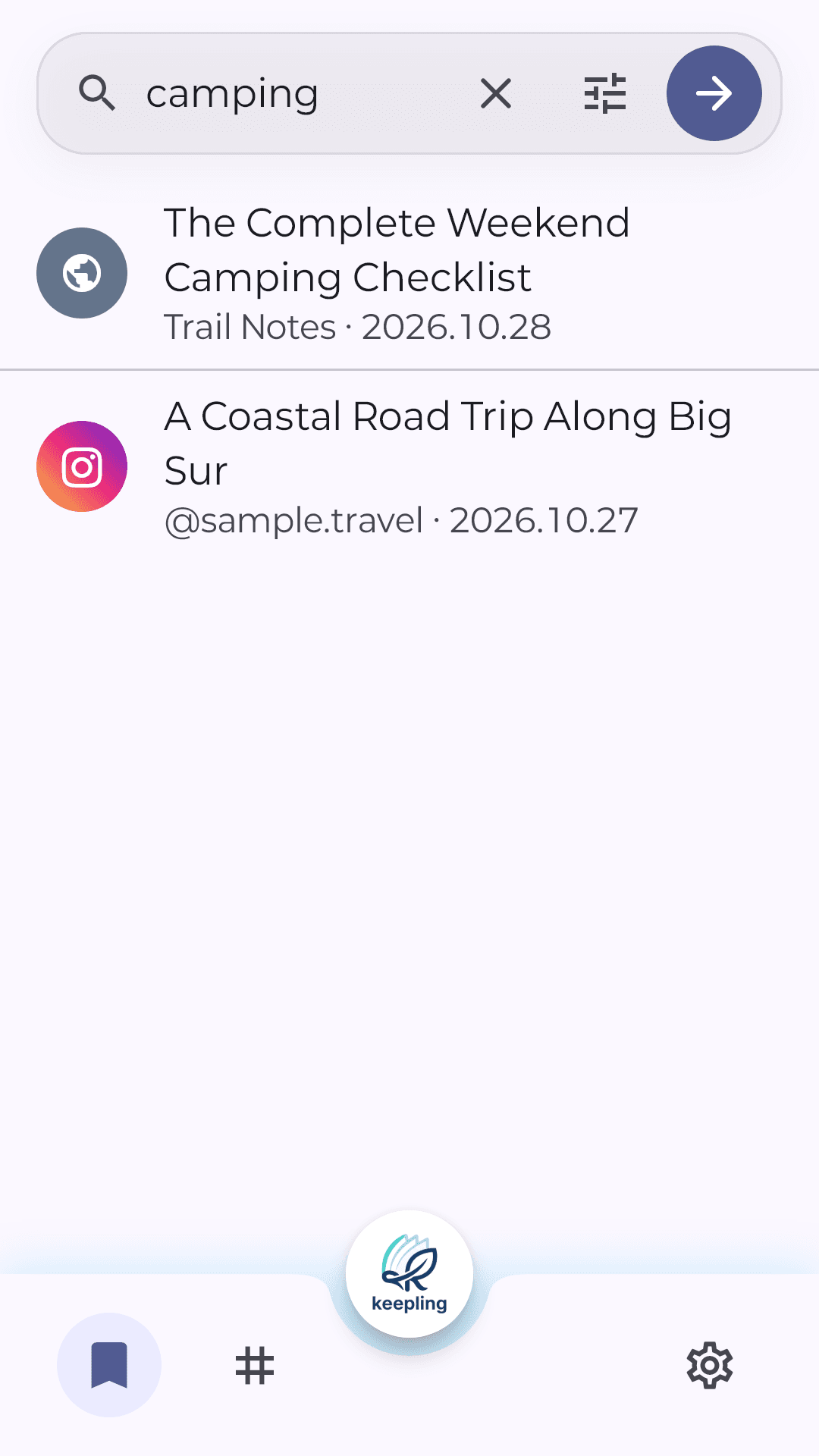
You don’t have to remember which app it came from. Search the saved title, text or hashtags.
- Open Archive in Keepling’s bottom menu.
- Type a word you remember into Search saved posts or hashtags at the top.
- Tap the arrow on the right or the keyboard’s Search button to run the search.
- Open a result to read it. Use Filter & sort to narrow the source apps or sort by Date saved or Recently viewed.
Searching and reading saved text work offline. Original links and images that weren’t downloaded still need internet. If part of a word doesn’t match, try the beginning of the word or another search term.
Report a capture problem
Missing text, missing photos or the wrong content? Ask us to improve it, directly from that post.
- Swipe the post left in your Archive or search results.
- Tap Report and choose a category: missing or cut-off text, missing photos or videos, different content, or something else.
- Add optional details, then tap Send. An internet connection is required.
- Open Settings → My reports to see Received, Reviewing, Fixed or Can’t be fixed, and the team’s reply.
Reporting is available from 0.1.1. Reports send the post’s links and title, capture details, your report, and app version and language; saved text and images are not sent. Reports are linked to this app install. Clearing app data or reinstalling removes access to earlier reports.
Delete a saved post
Make room for what matters. Remove a post and its saved files together.
- Swipe the post left in your Archive or search results.
- Tap Delete. You can also open the post and tap the trash icon at the top of the reader.
- Confirm Delete when asked ‘Delete this post and its saved files?’
- The post and its associated saved files are removed from your device. The original social post is not affected.
There is no trash folder or undo in the app. To save it again, the original must still be accessible. Deleting a post does not delete its problem report; delete reports separately in My reports.
The things you choose. Kept close.
Install Keepling on Google Play, then share a public post to save it to your archive.
Download on Google Play